Mixers
Mixer
The Mixer is used to mix up to any number of material streams into one, while executing all the mass and energy balances.
The only calculation parameter for mixer is the outlet pressure calculation mode (outPress) variable which is of type parameter String. It can have either of the string values among the following modes:
Inlet_MinimumOutlet pressure is taken as minimum of all inlet streams pressureInlet_AverageOutlet pressure is calculated as average of all inlet streams pressureInlet_MaximumOutlet pressure is taken as maximum of all inlet streams pressure
outPress has been declared of type parameter String.
During simulation, it can specified directly under Mixer Specifications
by double clicking on the mixer model instance.
Simulating a Mixer
Create a package named
MixerCreate a model named
MSinsideMixer. This is to extendMaterialStreammodelExtend the model
MaterialStreamand necessary property method fromThermodynamicPackagesextends Simulator.Streams.MaterialStreams; extends Simulator.Files.ThermodynamicPackages.RaoultsLaw;Create another new model named
MixerSimulationSimilar to the
MaterialStreamexample model, importChemsepDatabaseand create variables for the compounds which are to be used fromChemsepDatabaseimport data = Simulator.Files.ChemsepDatabase; parameter data.Ethanol eth; parameter data.Methanol meth; parameter data.Water wat;Define variables for Number of components
Ncand component arrayC. Also assign the variables created for the compounds to the component arrayparameter Integer Nc = 3; parameter data.GeneralProperties C[Nc] = {meth, eth, wat};Now, create six instances of the
MaterialStreammodelMSas we require six material streams which will go as input. To do this, open diagram view ofMixerSimulationmodel, drag & dropMSfor six times for six input streams as shown in fig. Name the instances asS1,S2,S3,S4,S5andS6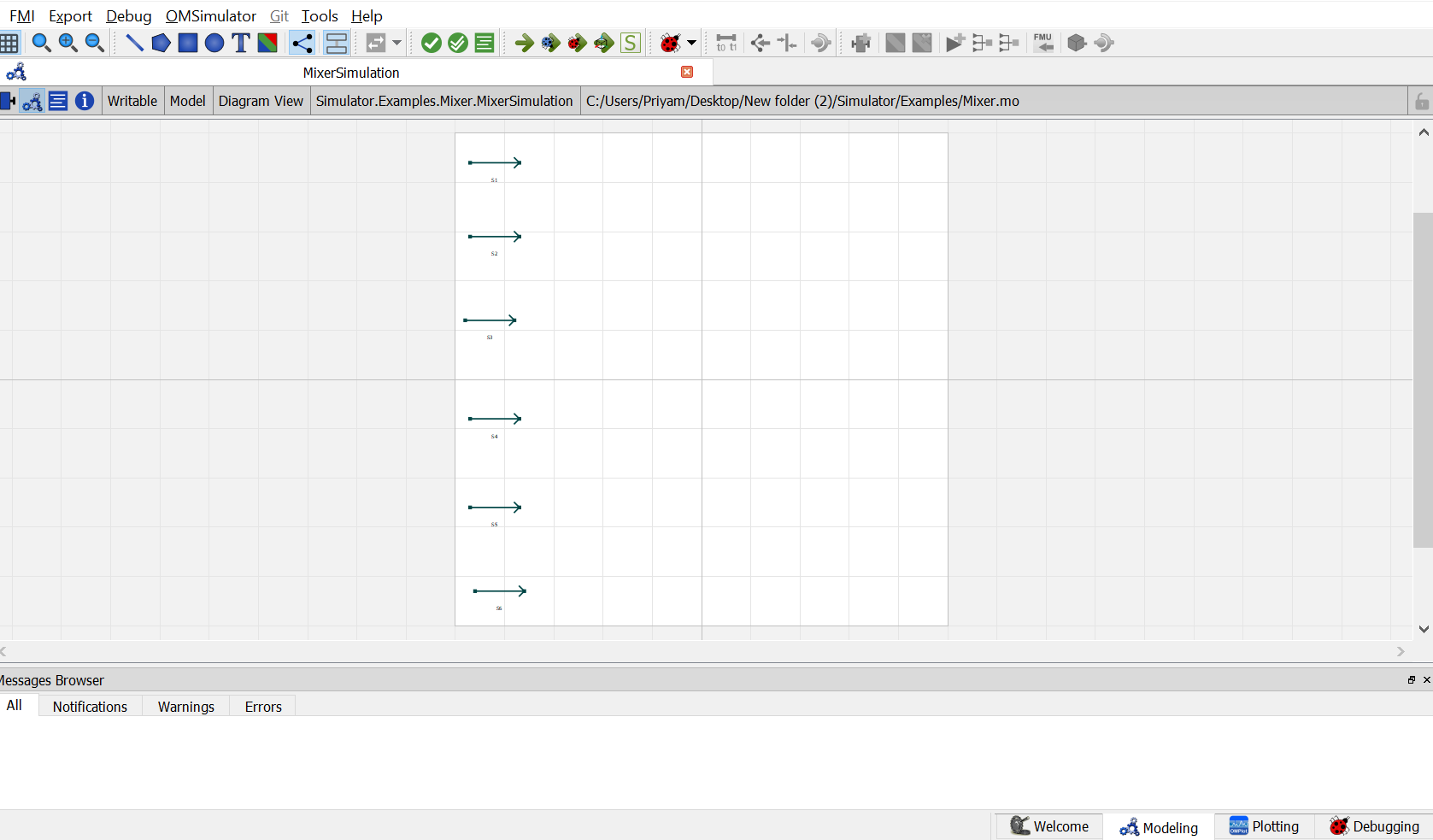
Similarly, create amother instance of the
MaterialStreammodelMSwhich will act as the outlet stream. Name the instance asS7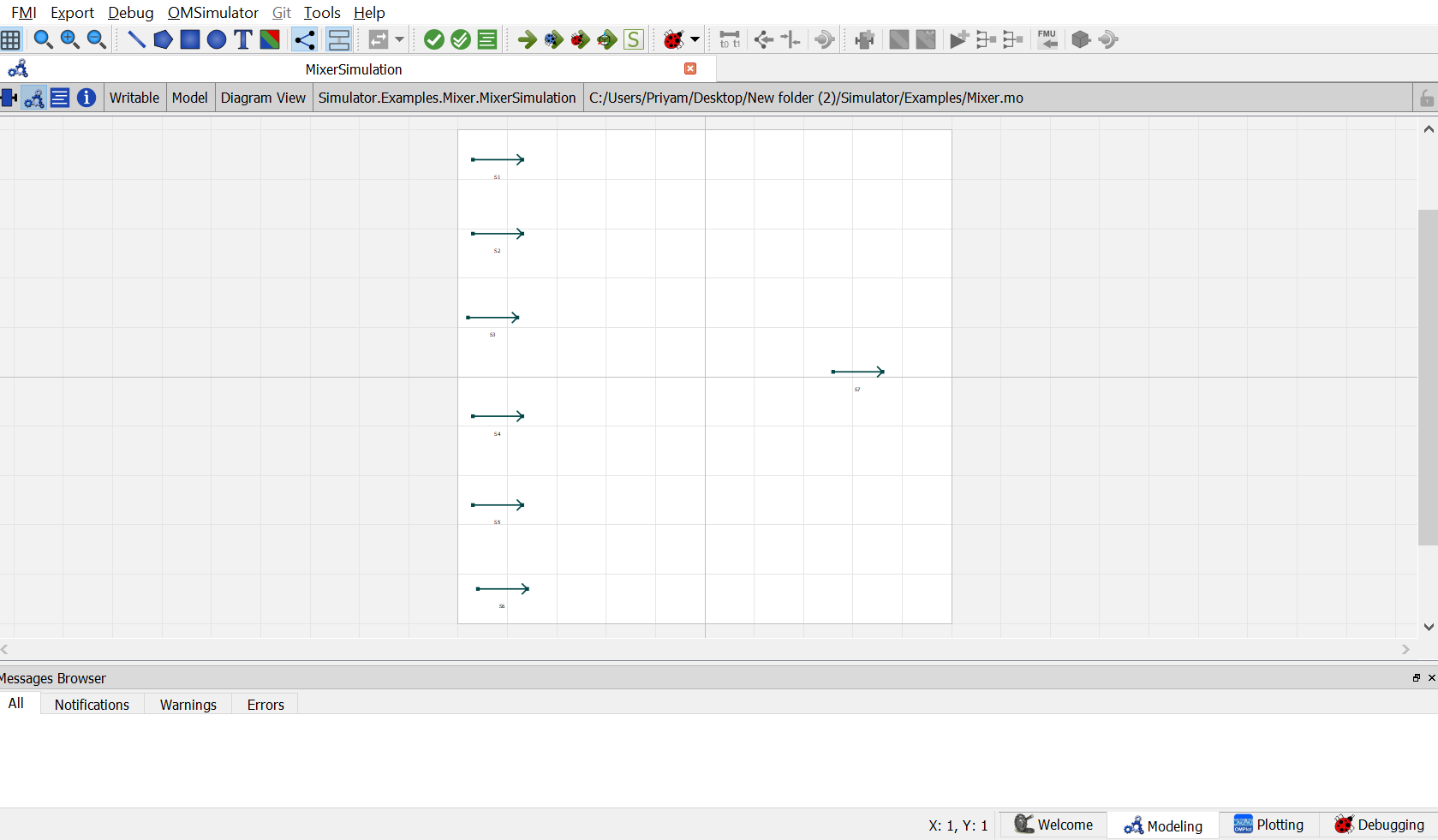
Now, Drag and drop the
Mixermodel available underUnitOperations. Name the instance asB1
Now double click on
S1. Component Parameters window opens. Go to Stream Specifications tab. There are two parameterNcandCfor which the values are to be entered. As the value forNcandCare already declared earlier in step 6 while defining the variables, these variables are passed here instead of the values. Repeat this for remaining five input material streams and the output material stream.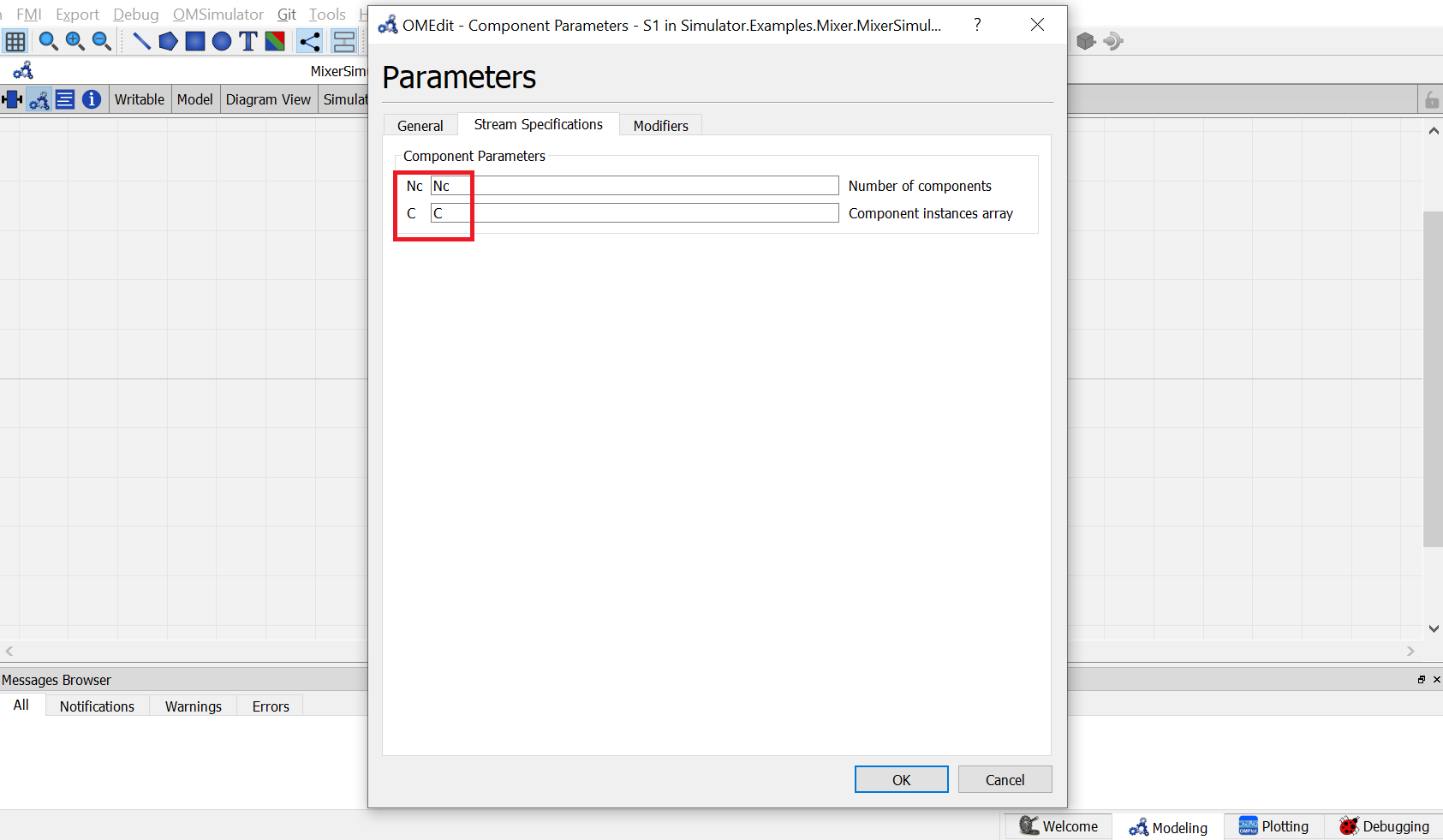
Now double click on
B1. Component Parameters window opens. Go to Mixer Specifications tab and enter the values for parameters as mentioned below:
NcandCcan be entered same as material stream
NIrepresents the number of input material streams. As there are six material streams going as input, enter 6 againstNI
outPressrepresents the pressure calculation mode for outlet material stream. Currently mixer support three different calculation mode which are inlet minimum,inlet average and inlet maximum. Here inlet average will be selected. So enter"Inlet_Average"
Switch to text view. Following lines of code will be autogenrated
MS S1(Nc = Nc, C = C) annotation( ...);
MS S2(Nc = Nc, C = C) annotation( ...);
MS S3(Nc = Nc, C = C) annotation( ...);
MS S4(Nc = Nc, C = C) annotation( ...);
MS S5(Nc = Nc, C = C) annotation( ...);
MS S6(Nc = Nc, C = C) annotation( ...);
Simulator.UnitOperations.Mixer B1(Nc = Nc, NI = 6, C = C, outPress = "Inlet_Average") annotation( ...);
MS S7(Nc = Nc, C = C) annotation( ...);
Now, connect the streams with unit operations. For this, switch back to Diagram view.

Switch to text view. Following lines of code will be autogenrated under
equationsectionconnect(B1.Out, S7.In) annotation( ...); connect(S6.Out, B1.In[6]) annotation( ...); connect(S5.Out, B1.In[5]) annotation( ...); connect(S4.Out, B1.In[4]) annotation( ...); connect(S3.Out, B1.In[3]) annotation( ...); connect(S2.Out, B1.In[2]) annotation( ...); connect(S1.Out, B1.In[1]) annotation( ...);Specify the value of pressure for all the six inlet material streams
S1.P = 101325;
S2.P = 202650;
S3.P = 126523;
S4.P = 215365;
S5.P = 152365;
S6.P = 152568;
Specify the value of temperature for all the six inlet material streams
S1.T = 353;
S2.T = 353;
S3.T = 353;
S4.T = 353;
S5.T = 353;
S6.T = 353;
Specify the value of molar flow rate for all the six inlet material streams
S1.F_p[1] = 100;
S2.F_p[1] = 100;
S3.F_p[1] = 300;
S4.F_p[1] = 500;
S5.F_p[1] = 400;
S6.F_p[1] = 200;
Specify the mole fraction of components for all the six inlet material streams
S1.x_pc[1, :] = {0.25, 0.25, 0.5};
S2.x_pc[1, :] = {0, 0, 1};
S3.x_pc[1, :] = {0.3, 0.3, 0.4};
S4.x_pc[1, :] = {0.25, 0.25, 0.5};
S5.x_pc[1, :] = {0.2, 0.4, 0.4};
S6.x_pc[1, :] = {0, 1, 0};
This completes the Mixer package. Now click on
Simulatebutton to simulate theMixerSimulationmodel. Switch to Plotting Perspective to view the results.Note
You can also find this package named
Mixerin theSimulatorlibrary underExamplespackage.
Splitter
The Splitter is used to split up to a material streams into two, while executing all the mass and energy balances.
The only calculation parameter for splitter is the calculation type CalcType variable
which is of type parameter String. It can have either of the string values among the following types:
Split_RatioMass and molar flow rate of the outlet streams are to be calculated depending on the specified split ratioMass_FlowMolar flow rate of the outlet streams are to be calculated depending on the specified mass flow rates of outlet streamMolar_FlowMass flow rate of the outlet streams are to be calculated depending on the specified molar flow rate of the outlet stream
CalcType has been declared of type parameter String.
During simulation, it can specified directly under Splitter Specifications by double clicking
on the splitter model instance.
Depending on the CalcType specified in the Splitter Specification, its value has to be specified
through the variable Specification Value SpecVal_s. It is declared of type Real.
During simulation, value of this variable need to be defined in the equation section.
Simulating a Splitter
Create a package named
SplitterCreate a model named
MSinsideSplitter. This is to extendMaterialStreammodelExtend the model
MaterialStreamand necessary property method fromThermodynamicPackagesextends Simulator.Streams.MaterialStreams; extends Simulator.Files.ThermodynamicPackages.RaoultsLaw;Create another new model named
SplitterSimulationSimilar to the
MaterialStreamexample model, importChemsepDatabaseand create variables for the compounds which are to be used fromChemsepDatabaseimport data = Simulator.Files.ChemsepDatabase; parameter data.Benzene benz; parameter data.Toluene tol;Define variables for Number of components
Ncand component arrayC. Also assign the variables created for the compounds to the component arrayparameter Integer Nc = 2; parameter data.GeneralProperties C[Nc] = {benz, tol};Now, create three instances of the
MaterialStreammodelMSas we require one material stream which will go as input and two material streams which will come as output. To do this, open diagram view ofSplitterSimulationmodel, drag & dropMSfor three times as shown in fig. Name the instances asS1,S2andS3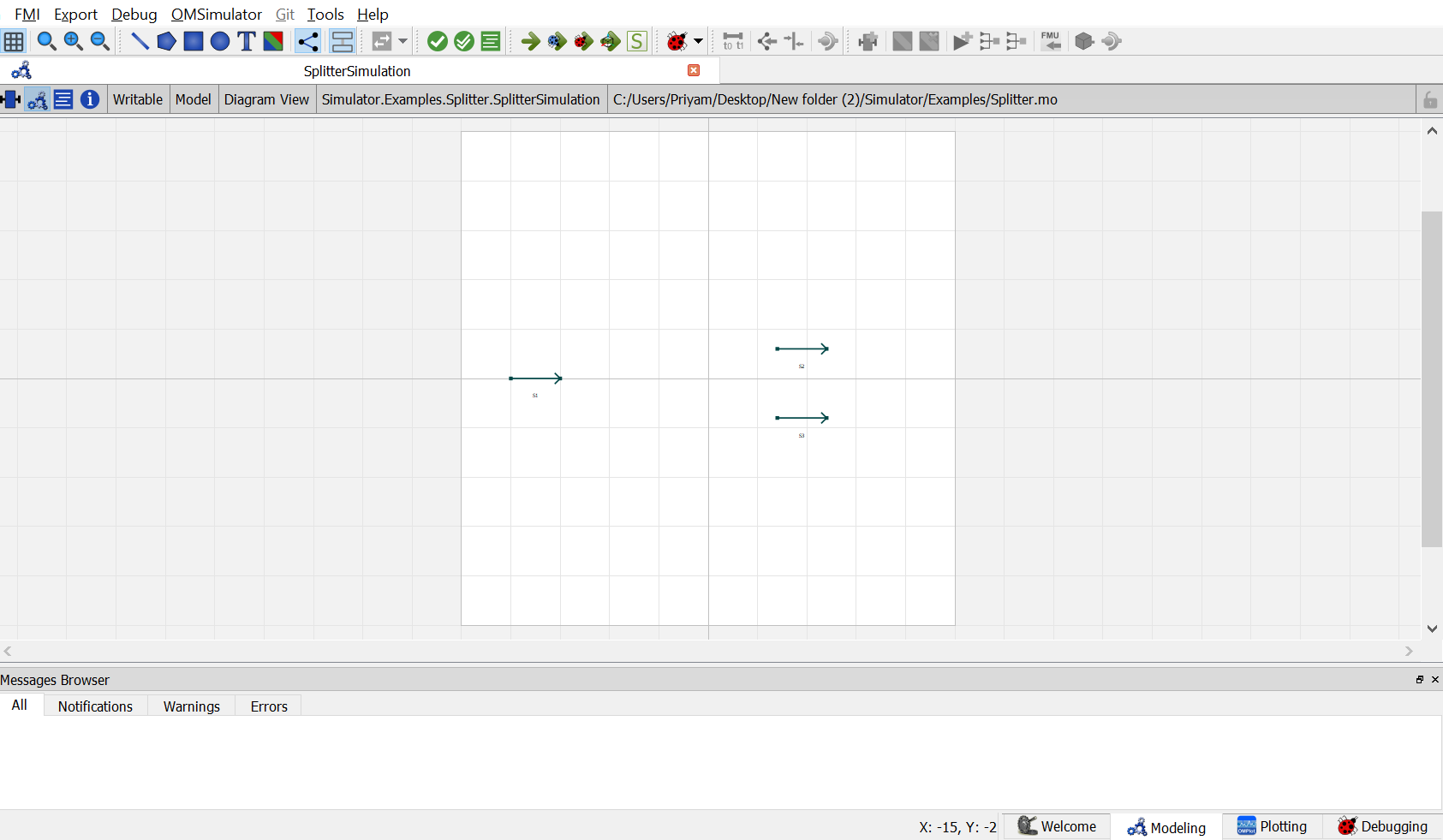
Now, Drag and drop the
Splittermodel available underUnitOperations. Name the instance asB1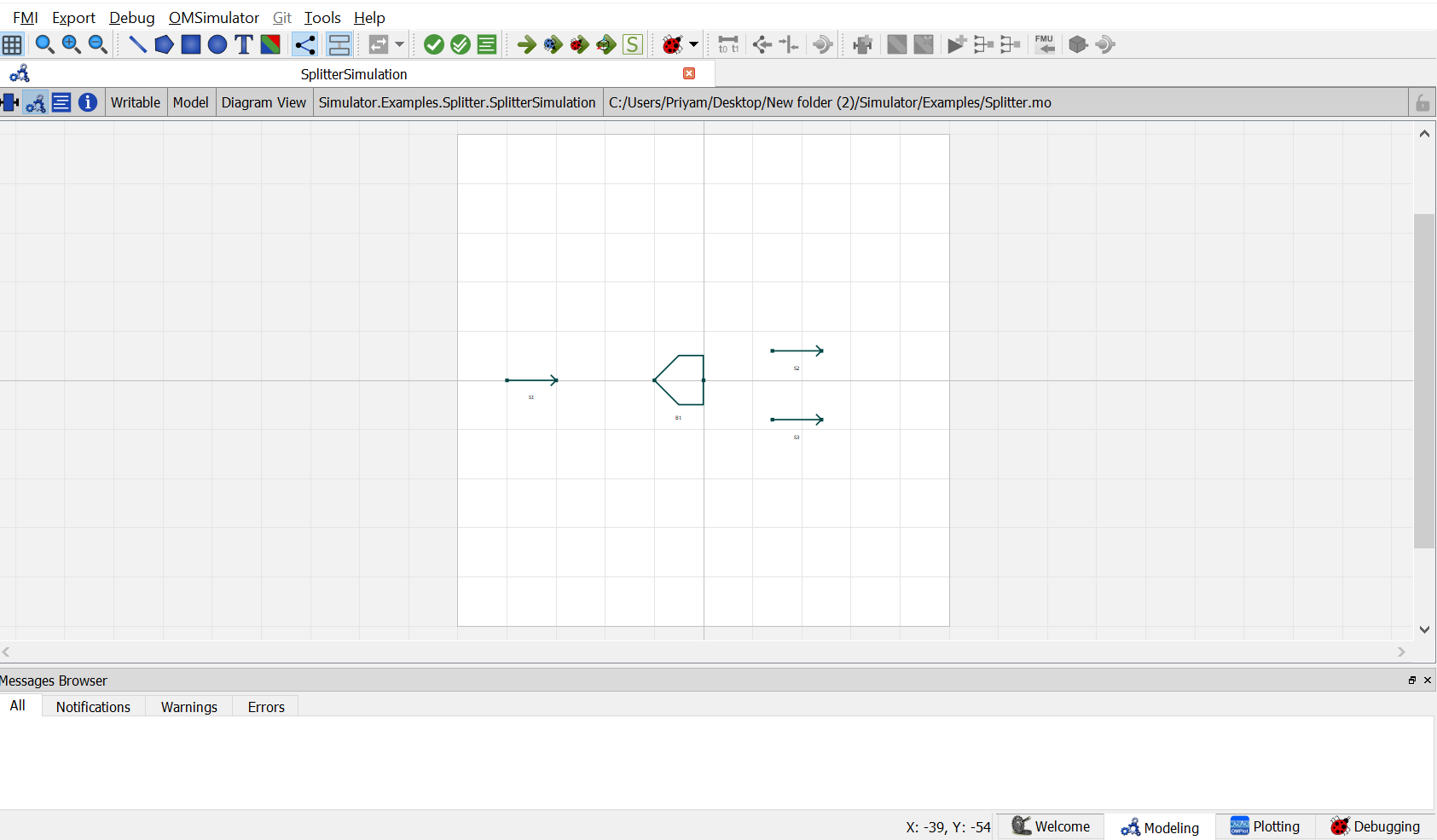
Now double click on
S1. Component Parameters window opens. Go to Stream Specifications tab. There are two parameterNcandCfor which the values are to be entered. As the value forNcandCare already declared earlier in step 6 while defining the variables, these variables are passed here instead of the values. Repeat this for remaining two material streams.
Now double click on
B1. Component Parameters window opens. Go to Splitter Specifications tab and enter the values for parameters as mentioned below:
NcandCcan be entered same as material stream
Norepresents the number of output material streams. As we have two material streams coming out, enter 2 againstNo
CalcTyperepresents the calculation type specification for outlet material stream. Currently splitter support three different calculation type which are split ratio,mass flow and molar flow. Here molar flow will be selected. So enter"Molar_Flow"
Switch to text view. Following lines of code will be autogenrated
MS S1(Nc = Nc, C = C) annotation( ...);
MS S2(Nc = Nc, C = C) annotation( ...);
MS S3(Nc = Nc, C = C) annotation( ...);
Simulator.UnitOperations.Splitter B1(Nc = Nc, No = 6, C = C, CalcType = "Molar_Flow") annotation( ...);
Now, connect the streams with unit operations. For this, switch back to Diagram view.
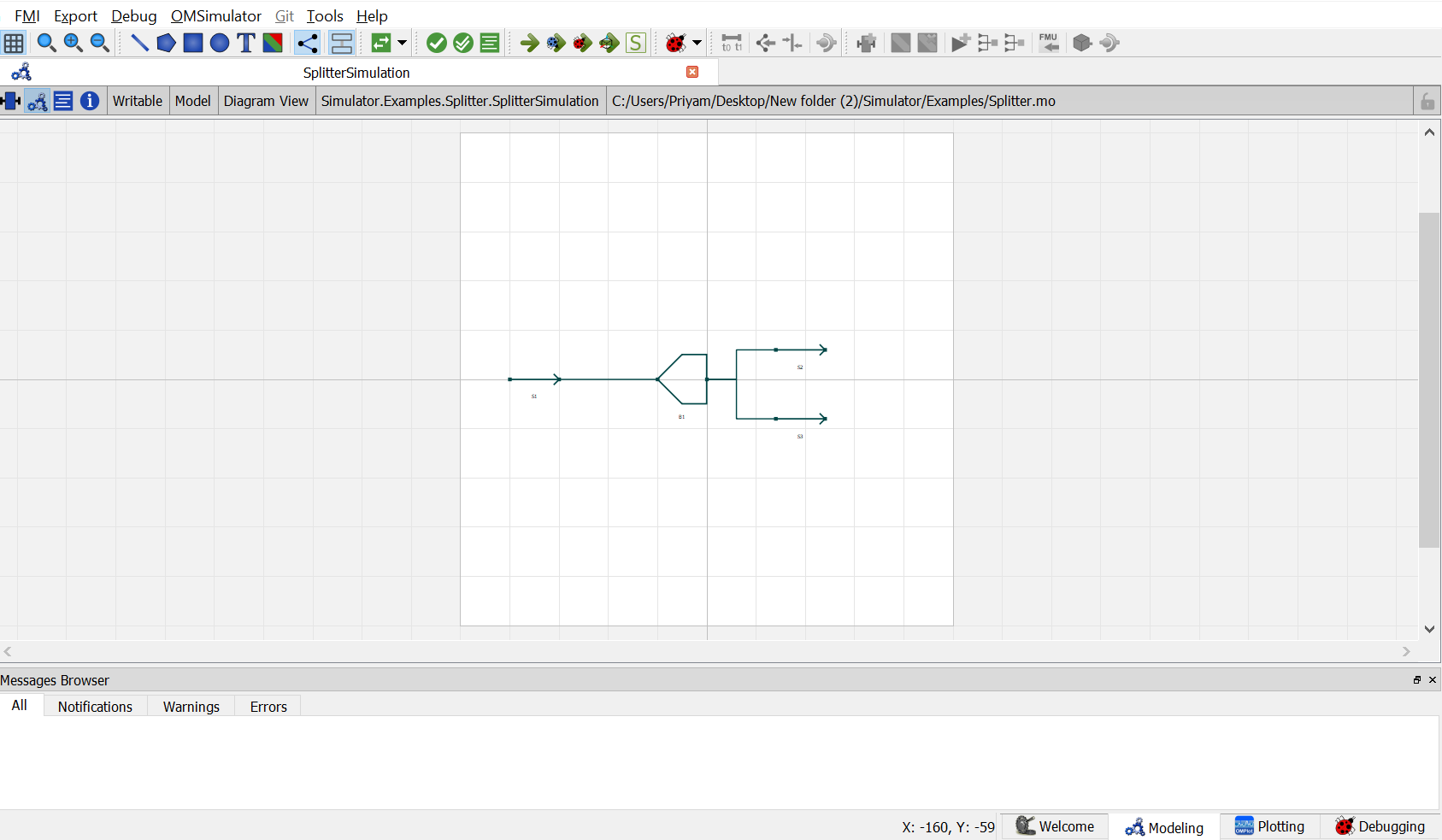
Switch to text view. Following lines of code will be autogenrated under
equationsectionconnect(B1.Out[2], S3.In) annotation( ...); connect(B1.Out[1], S2.In) annotation( ...); connect(S1.Out, B1.In) annotation( ...);Specify the pressure, temperature, component mole fractions and molar flow rate for the inlet material stream
S1.P = 101325;
S1.T = 300;
S1.x_pc[1, :] = {0.5, 0.5};
S1.F_p[1] = 100;
Now specify the specification value for the selected calculation type in splitter
B1.SpecVal_s = {20, 80};This completes the Splitter package. Now click on
Simulatebutton to simulate theSplitterSimulationmodel. Switch to Plotting Perspective to view the results.Note
You can also find this package named
Splitterin theSimulatorlibrary underExamplespackage.